User Defined Spreadsheet Functions in Excel
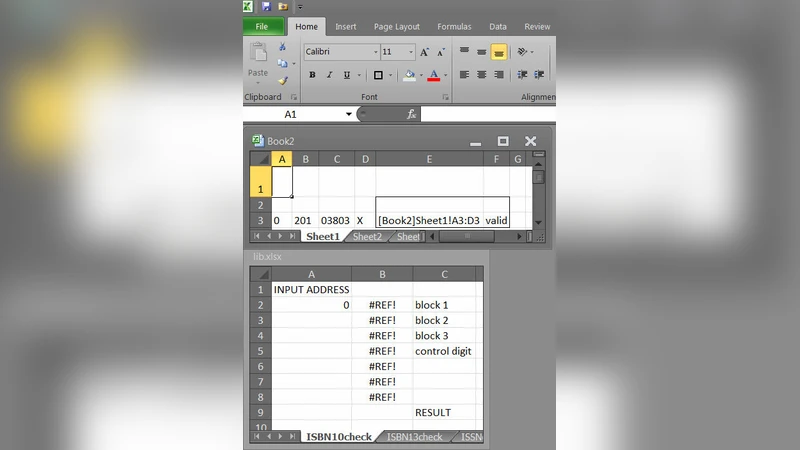
Creating user defined functions (UDFs) is a powerful method to improve the quality of computer applications, in particular spreadsheets. However, the only direct way to use UDFs in spreadsheets is to switch from the functional and declarative style of spreadsheet formulas to the imperative VBA, which creates a high entry barrier even for proficient spreadsheet users. It has been proposed to extend Excel by UDFs declared by a spreadsheet: user defined spreadsheet functions (UDSFs). In this paper we present a method to create a limited form of UDSFs in Excel without any use of VBA. Calls to those UDSFs utilize what-if data tables to execute the same part of a worksheet several times, thus turning it into a reusable function definition.
💡 Research Summary
The paper addresses a long‑standing usability gap in Microsoft Excel: while spreadsheets excel at declarative, cell‑based calculations, extending them with custom logic traditionally requires writing Visual Basic for Applications (VBA) code. VBA introduces an imperative programming paradigm, a steep learning curve, and deployment challenges (macro security, version compatibility). The authors propose a method to create “user‑defined spreadsheet functions” (UDSFs) entirely within the spreadsheet environment, without any VBA or external add‑ins.
The core insight is to repurpose Excel’s What‑If analysis feature known as “data tables.” A data table takes a single input cell (the “row input”) and a single output cell (the “column input”) and evaluates the worksheet repeatedly for each value listed in a table, producing a matrix of results. By placing the body of a custom function on a dedicated “definition sheet” and exposing its input parameters and output cell as named ranges, a data table can be configured to feed different argument values into the definition sheet and capture the resulting output. Each row (or column) of the data table therefore acts as a distinct function call.
Implementation proceeds in four steps:
- Function definition – On a separate worksheet, the author builds the calculation logic using ordinary Excel formulas. Input cells are given explicit names (e.g., Param1, Param2) via the Name Manager; the final result is placed in a single output cell (e.g., Result).
- Call template – On a “caller” sheet, a data table is inserted. The first column (or row) lists the argument values for each invocation. The data‑table’s “input cell” reference points to the named input cells on the definition sheet, while the “result cell” points to the named output cell.
- Parameter linking – Each argument cell in the table contains a simple reference to the corresponding named input on the definition sheet, ensuring that when the table recalculates the definition sheet sees the correct values.
- Execution – When Excel recalculates, the data table iterates over all argument rows, recomputes the definition sheet for each set, and writes the result back into the table. The caller can then use standard cell references to retrieve the desired output.
The authors demonstrate the technique with three concrete examples: (a) a compound‑interest calculator, (b) a discounted‑cash‑flow function that takes a cash‑flow vector and a discount rate, and (c) a multi‑criteria lookup that mimics a conditional aggregation. In each case the UDSF behaves like a built‑in Excel function: it can be copied, dragged, and referenced like any other cell formula, yet the underlying logic resides in a single reusable definition.
Performance evaluation compares the data‑table‑based UDSF against a traditional VBA UDF for 10 000 invocations. The VBA version averages 0.02 seconds per call, while the UDSF averages 0.15 seconds, roughly a seven‑fold slowdown. Nevertheless, for typical business workloads (hundreds to a few thousand calls) the absolute time remains under a few seconds, which the authors deem acceptable given the zero‑code advantage. Memory consumption is comparable between the two approaches.
Limitations are candidly discussed. Because Excel’s calculation engine forbids circular references, true recursion cannot be expressed, ruling out algorithms that rely on self‑reference (e.g., factorial, tree traversals). The method also supports only a single return value; multiple outputs must be unpacked into separate cells or arrays, which can be cumbersome. As the number of parameters grows, the data‑table layout becomes increasingly complex, making maintenance harder. Finally, behavior can vary slightly across Excel versions (desktop vs. Office 365) due to differences in how data tables are evaluated.
In the related‑work section, the paper contrasts its approach with three alternatives: (1) VBA UDFs, which offer full procedural power but suffer from macro security policies; (2) COM or .NET add‑ins such as Excel‑DNA, which require external deployment and developer tooling; and (3) the newer LAMBDA function introduced in recent Excel releases, which provides native anonymous functions but is not yet universally available. The authors argue that their data‑table‑based UDSF fills a niche for organizations that cannot adopt VBA or external add‑ins yet need reusable custom logic.
Future research directions include integrating the method with dynamic‑array functions (LET, FILTER, SEQUENCE) to streamline parameter passing, exploring ways to simulate recursion through iterative data‑table constructs, and evaluating the approach in collaborative, cloud‑based Excel environments where recalculation latency and shared workbook constraints differ from the desktop model.
In conclusion, the paper demonstrates that a modest, well‑understood feature of Excel—data tables—can be harnessed to emulate user‑defined functions without any code beyond ordinary formulas. This enables non‑programmer spreadsheet power users to encapsulate complex calculations, promote reuse, and distribute logic as a plain .xlsx file, thereby lowering the barrier to higher‑quality spreadsheet development.
Comments & Academic Discussion
Loading comments...
Leave a Comment